
Getting Started
Connecting the game and the portal
How the Whartels game and the PEN Play portal find each other - the two QR codes, the four ways to link a device, and what travels in each direction.
PEN Play comes in two halves. Your child plays Whartels on a phone or tablet. You use the portal in a web browser. On their own, neither half knows about the other - linking is what joins them, so the game knows who is playing and the portal can show you how it went.
This page explains how the two halves talk to each other. If you just want the quickest set of steps, Linking the Whartels game is the short version.
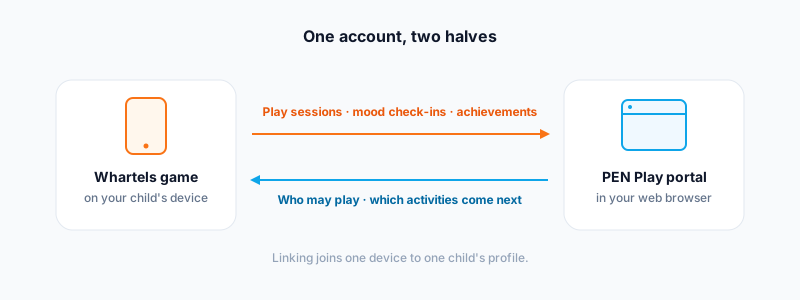
What travels in each direction
Once a device is linked, information moves both ways, and it helps to know which way is which.
From the game to the portal goes everything your child does: each play session, the answers they give, the mood check-ins they complete and the achievements they earn. This is what builds the charts on your dashboard - see Understanding progress and Mood & comprehension.
From the portal back to the game go the things you control:
- Whether your child may play at all. The game doesn't decide this. Every time it starts, it asks the portal whether your child has an active seat, and it does what the portal says.
- Which activities come next. The game asks the portal for suggestions each time your child opens it, and the portal replies with the areas that need the most attention. The game then picks activities to match.
That second point is worth pausing on: the game does not choose what to work on by itself. It asks. This is why a change you make in the portal shows up in the game shortly afterwards, without anyone reinstalling anything.
The two QR codes
This is the part that catches almost everyone out. There are two QR codes, they look identical, and they point in opposite directions.
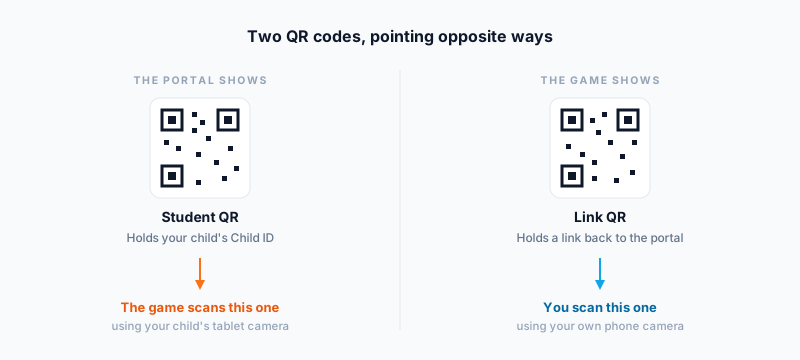
- The Student QR lives in the portal, on your child's profile. It holds your child's Child ID and nothing else. The game scans this one, using your child's tablet camera.
- The Link QR is shown by the game, on its Link Player screen. It holds a link back to the portal. You scan this one, with your own phone.
A simple way to remember it: whichever device is in your hand, you want the other device's QR code on screen. Holding your child's tablet? Put the portal's QR up. Holding your own phone? Put the game's QR up.
The four ways to link
There are four ways to link a device, but they follow only two routes. The route matters, because the two behave differently.
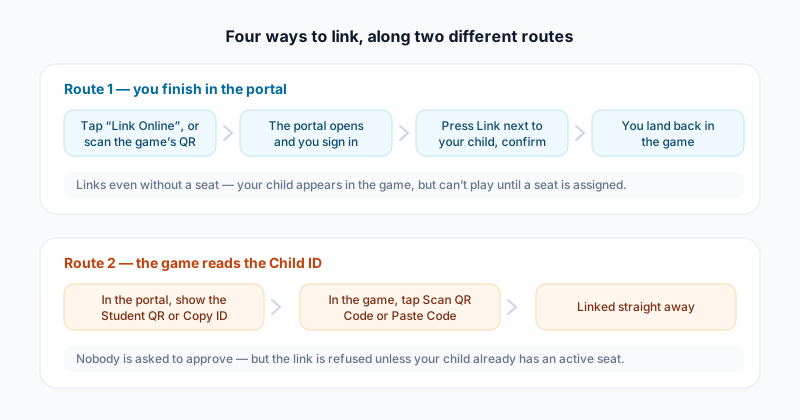
Route 1 - you finish in the portal
Start in the game, on the Link Player screen, either by tapping Link Online or by scanning the game's Link QR with your phone. Both open the portal. You sign in, press Link next to the child you want, and confirm. The game then picks the link up by itself - you land back in it automatically.
Use this route when you are the one holding the phone, or when you're setting things up away from your child's device.
Route 2 - the game reads the Child ID
Start in the portal instead. Open your child's profile, find Show QR and you'll get their Student QR and Child ID. Then, in the game, either tap Scan QR Code and point the tablet at your screen, or tap Paste Code and paste the Child ID in.
Nobody is asked to approve anything on this route - the link happens the moment the game reads the ID. Use it when your child's tablet is in front of you.
Because anyone holding the Child ID can link a device with it, treat it like a password. Don't post it in a class group or a shared chat.
How the two routes differ
| Route 1 - finish in the portal | Route 2 - game reads the Child ID | |
|---|---|---|
| Where you start | In the game | In the portal |
| Who confirms | You do, in the portal | Nobody - it links immediately |
| Needs a seat first? | No | Yes |
| If there's no seat | Links anyway; your child can't play yet | The link is refused outright |
Why a seat comes first
A seat is what entitles a child to play. See Licensing & seats for what a seat is and Subscription & billing for how to get one.
The two routes treat a missing seat differently, which is the single most common source of confusion:
- On Route 2, the game checks the seat before it links, and refuses if there isn't a good one. You'll see a message naming the reason - "This student does not have an active seat.", "This student's subscription has expired." or "This student's account has been suspended."
- On Route 1, the link is made regardless. Your child then appears in the game as expected, but tapping their name shows a Seat Required notice with a shortcut to the billing page, rather than starting a game.
So if a child is linked but can't play, the link isn't broken - the seat is missing. Assigning one fixes it, and no re-linking is needed.
The game only re-checks the seat when it starts up. If you've just assigned a seat, close the game fully and reopen it rather than waiting.
Undoing a link
Links are removed from the portal, not the game. On the links page you'll find a Remove link button next to each linked device.
There is no unlink button inside Whartels itself, so if you're handing a device on to someone else, remove the link from the portal first.
One QR, two jobs
The Student QR does double duty. As well as linking the game, it's the same code a teacher or therapist scans to add your child to a class or a playgroup - see Classrooms and Playgroups. Requests like those need your approval and show up in Approval requests.
Game links are different: nothing lands in your approvals for you to accept on Route 1, because you already confirmed it yourself at the time.
If something goes wrong
- The QR won't scan. Check you're scanning the right one - see the two QR codes above. If it still won't read, use Paste Code with the Child ID instead; it does exactly the same thing.
- "This device is already linked." That device is already connected to this child. Remove the existing link in the portal if you want to redo it.
- Linked, but can't play. Almost always a missing seat - see Why a seat comes first.
- Nothing appears on your dashboard. Progress only arrives once your child has actually played a session while linked.
More help is in Troubleshooting.